The insanity of using a virtual machine on Windows 11
A couple of weeks ago I decided to get back into Windows, simply because I wanted a bit better driver support, and a better tablet experience than I had with Debian on a Chinese 8" laptop that I bought for my birthday in the beginning of January, and insist on forcing myself to use it increasingly more often.
I've always had issues with Windows, but I have a lot of nostalgia for it, and I'm constantly drawn to it, even though I try to stay away from it as much as possible, from time to time it has a way to seeping back into my life. Don't get me wrong, I use Windows almost daily, but it's always the older versions such as Windows XP, 98 or some older versions of Windows Server, purely because I love retro computing and have a lot of nostalgia for these versions of Windows, but rarely do I encounter myself using "modern" Windows.
Ever since the release of Windows 11, and me coincidentally purchasing another one of my dream machines, a cheap trashcan Mac Pro that I upgraded to its maximum configuration, I haven't used modern Windows, apart from the odd Windows 10 virtual machine I keep around for testing software. I've heard from all the media outlets that I follow, that Windows has been getting worse and worse at an unprecedented rate, specially due to all the AI garbage that they've been filling it with.
With the knowledge that things have gotten progressively worse than my last attempt at daily driving Windows, I installed the IoT Enterprise LTSC SKU of Windows 11, something I've been doing ever since Windows 10 Pro started getting too bloated on my virtual machines. This is great because I get a stable base to work on, but comes with its own set of troubles when dealing with specific software compatibilities, specially around software released by Microsoft that expects an entire retail installation, namely Windows Terminal, which is the only application that I had to work very hard to get it to install and work properly.
Fast-forward a couple of months in the future and I decided that I needed a Windows XP virtual machine on my Windows 11 install in order to use Visual C++ 6 and my beloved eMbedded Visual C++, both horrible pieces of software that I have a love/hate Stockholm syndrome relationship with.
The simplest way to have a hypervisor that just works under Windows has been to simply enable Hyper-V. Ever since Microsoft introduced hypervisor-based security features in Windows 10, it has been a pain to disable it and get other hypervisors, such as VMWare or VirtualBox, to work. I had encountered these issues in the past, when I was using Windows 10, so I knew my way around it and how to disable Hyper-V and all of its peers. What I didn't know was how much worse Microsoft has entangled its hypervisor-based security features with the rest of the operating system.
Unfortunately for me, I couldn't just use Hyper-V, since I wanted to also be able to run ActiveSync and sync my old Handheld PCs and Pocket PCs with my virtual machine, something that is impossible with Hyper-V since it doesn't yet support USB passthrough.
I eventually decided to use VirtualBox, for no particular reason other than I didn't want to go through all the hassle of registering yet another Broadcom account using a temporary email just to download VMWare Workstation.
The first thing I did was to completely disable Hyper-V. This can be done by running the following commands on an elevated (Administrator) command prompt:
bcdedit /set hypervisorlaunchtype off
bcdedit /set vsmlaunchtype off
dism /online /Disable-Feature /FeatureName:Microsoft-Hyper-V-All /NoRestart
dism /online /Disable-Feature /FeatureName:HypervisorPlatform /NoRestart
dism /online /Disable-Feature /FeatureName:VirtualMachinePlatform /NoRestart
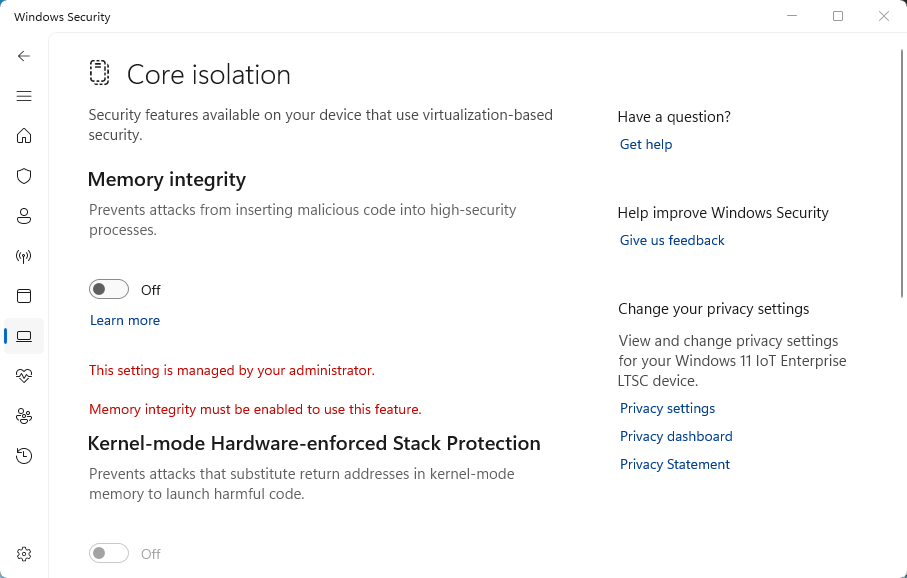
After disabling Hyper-V, Microsoft Virtualization Platform and Virtual Machine Support, the next step is to disable a Windows Security feature called Core Isolation, which can be done by disabling the Memory Integrity feature in the Windows Security settings:
Up until now, this has been all that was needed to do in order to get
another hypervisor working under Windows, but when I ran msinfo32,
it was still reporting that Hypervisor-based security was enabled. I searched
around and found out that Microsoft had introduced a brand new security
feature, that absolutely no one wanted or needed, called
Credential
Guard, that prevents attackers from stealing your credentials by isolating
them using virtualization. A feature that no one wanted or needed, specially
when Microsoft
themselves will take care of stealing your credentials and handing them
over to third parties.
This new layer of security was considerably tougher to disable and took me a couple of hours to figure out and bypass, to the point where I was so frustrated and burnt out, that I was contemplating giving up entirely and simply connecting via RDP to a Windows XP virtual machine at home, but I couldn't bring myself to do this. I wanted local virtual machines.
In the end, after countless searches and reboots, I found a post purportedly to be the ultimate guide to disable virtualization-based security. Although the post looks like it was just a copy and paste from an LLM, it did contain the information I so desperately needed to disable Credential Guard.
The only way to disable this abomination is to set both of these
registry entries to 0:
HKEY_LOCAL_MACHINE\SYSTEM\CurrentControlSet\Control\DeviceGuard\EnableVirtualizationBasedSecurityHKEY_LOCAL_MACHINE\SYSTEM\CurrentControlSet\Control\DeviceGuard\Scenarios\CredentialGuard\Enabled
If these keys don't exist in your system you have to create them, otherwise
they default to 1.
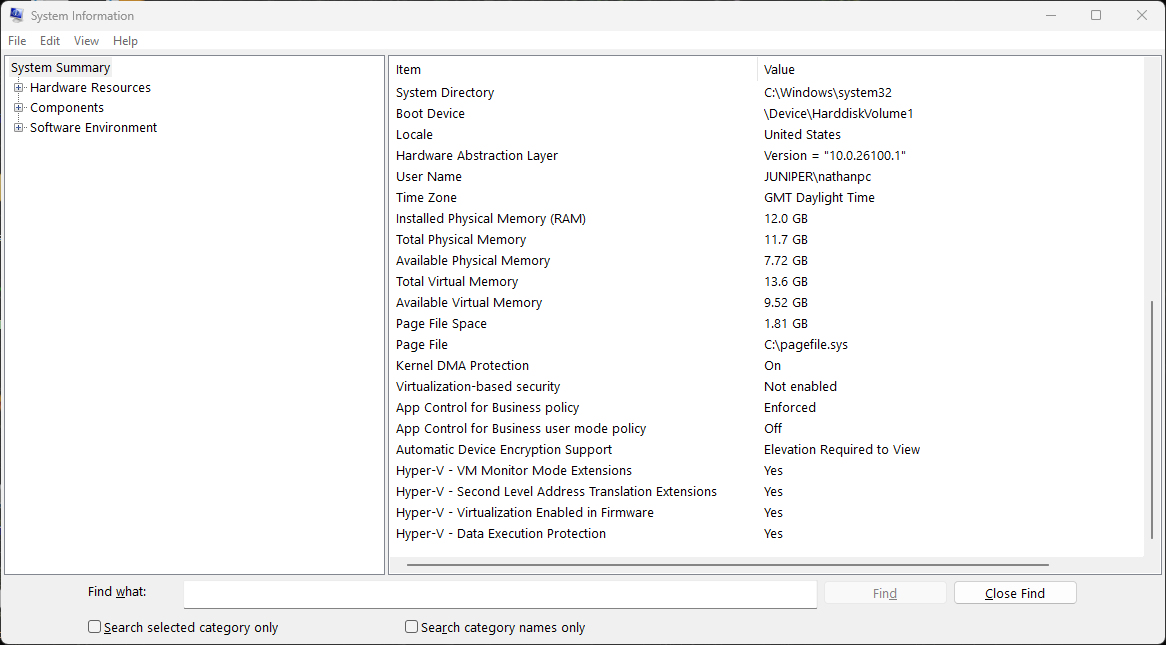
A reboot later and I finally was able to successfully run my Windows XP virtual machine at full speed and proceed with the setup of a version of Windows that actually works for you, not against you.
After all of this, I have to admit that I'm willing to endure quite a lot to keep using an operating system that doesn't respect me in any way. I guess my joke about having Stockholm syndrome is true after all...